![WellDatabase-Rect-1000x159-1.png]](https://support.welldatabase.com/hs-fs/hubfs/WellDatabase-Rect-1000x159-1.png?height=40&name=WellDatabase-Rect-1000x159-1.png)
Understanding the List View
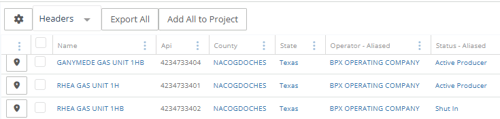
The WellDatabase list provides a table view of the wells returned in your search results.
You can use the list view to:
• Sort wells by specific data columns
• Open well detail pages
• Select wells for analytics, exports, or projects
• Customize which columns appear in the table
To switch to the list view, click List in the upper-right corner of the results screen.
Sort the List
Click any column header to sort the list by that field. Clicking the same column again reverses the sort order. Examples include Well Name, County, State, Operator, Well Status, Well Type, CUM Oil, and more.
Change the Columns
You can customize which columns appear in the list view.
1. Click the gear icon next to the current record type at the top of the list.
2. Use the Configure Columns window to add or remove columns in the list.
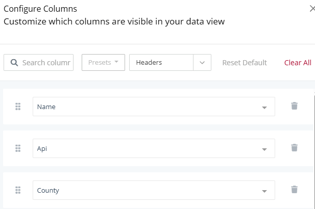
3. To reorder columns, click and drag the grid handle next to a column name to move it to a new position.

Change the List Record Type
The list view can display different types of WellDatabase records and datasets.
By default, the list opens in the Headers view, but you can switch to other record types using the dropdown menu at the top of the list.
1. Click the record type dropdown at the top of the list.
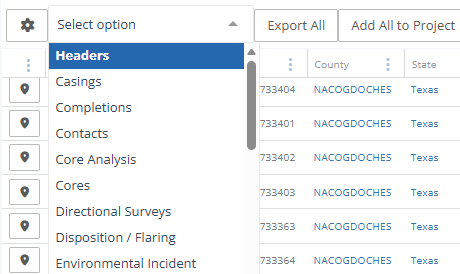
2. Select the record type you want to display.
Common record types include: Headers, Completions, Permits, Production Summary, Fracs / Stimulations. Additional record types are available within the dropdown menu.
Open Additional Details
The blue linked values within the list can be selected to open additional information. Clicking linked values such as the well name, county, operator, or status opens the related detail page directly from the list.
View Well Details
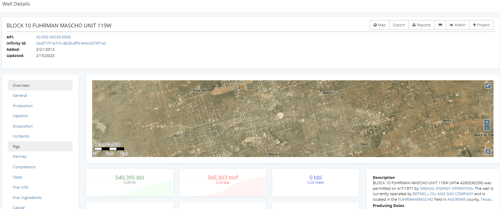
Clicking a well name opens the full well detail page, including available maps, production information, records, and related datasets. For a detailed breakdown of available, see: What data is shown on the well detail page?
Browse Related Data
You can also open broader data views directly from the list by selecting linked values such as:
• County
• State
• Operator
• Well Status
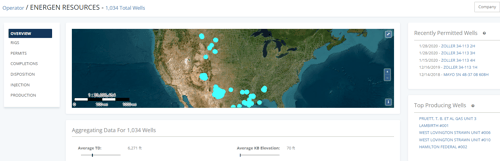
These views display additional wells and aggregated data related to the selected category.
Add Wells to a Project
You can add selected wells from a list directly into a new or existing project.
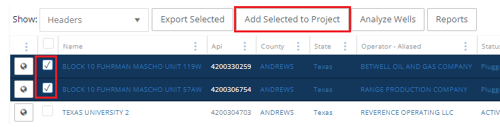
1. Select the wells you want to add to a project.
2. Click Add Selected to Project to add only the selected wells.
If no wells are selected, the button changes to Add All to Project to add the full list.
Analyze Selected Wells
You can analyze wells directly from the list view.
1. Select the wells you want to analyze.
2. Click Analyze Wells.
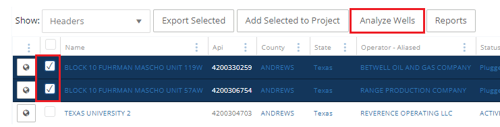
The analytics view provides aggregated data and charting tools for the selected wells, including production information, well statistics, dashboards, and custom charts. 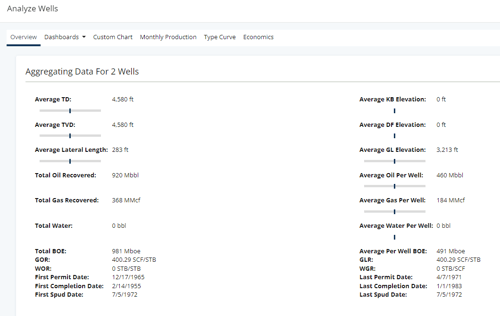
Export Wells from a List
You can export all wells in the list or only selected wells.
1. Select the wells you want to export.
2. Click Export Selected to export only the selected wells. If no wells are selected, the button changes to Export All to export the full list.
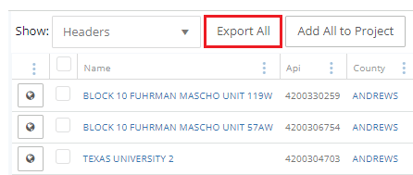
3. Complete the remaining steps in the Data Export Wizard. For detailed instructions on export settings, formats, and templates, see: How do I export data?
Frequently Asked Questions
Q: Can I customize which columns appear in the list view?
A: Yes. Use the gear icon next to the current record type to add, remove, or reorder columns in the list.
Q: Can I change the type of records displayed in the list?
A: Yes. Use the record type dropdown at the top of the list to switch between available record types such as Headers, Completions, Permits, and Production Summary.
Q: Can I add wells from a list directly into a project?
A: Yes. Select specific wells and click Add Selected to Project, or use Add All to Project to add the full list.
Q: Can I export all wells or only selected wells from a list?
A: Yes. Select specific wells and click Export Selected, or use Export All to export the full list.
Q: Does exporting wells from a list count against my monthly export limits?
A: Yes. Exports created through the Data Export Wizard count against monthly export limits based on your subscription plan.
Q: Can I analyze wells directly from a list?
A: Yes. Select wells from the list and click Analyze Wells to open aggregated analytics and charting tools for the selected wells.
Explore additional articles by searching the topics on the left. If you have any questions, feel free to email support@welldatabase.com