![WellDatabase-Rect-1000x159-1.png]](https://support.welldatabase.com/hs-fs/hubfs/WellDatabase-Rect-1000x159-1.png?height=40&name=WellDatabase-Rect-1000x159-1.png)
WellDatabase has dozens of filters you can utilize to find the wells you need.
This article focuses specifically on using filters. Filter sets can also be saved, recalled, and shared with other users.
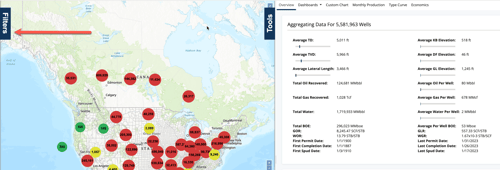
To get started, open the Filters pane on the left side of the screen.
Once you click on the Filters tab, the pane will expand to show all available filters.
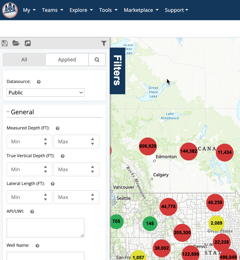
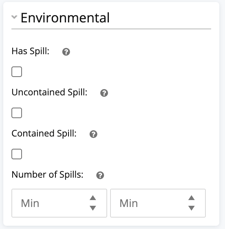
As you can see, WellDatabase includes a large number of available filters. Here is a run-down of the filters that are available. Each of the sections can be collapsed by clicking on the name, so feel free to hide sections you don’t typically need.
General Filters
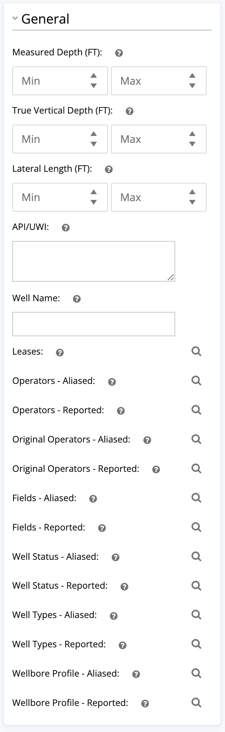
The General section contains many of the most commonly used filters.
Important notes about the General filters:
-
A list of multiple API numbers can be copied and pasted into the API text box.
-
The Well Name field will automatically use a trailing wildcard for searching
-
Reported values reflect the data exactly as provided by the regulatory agency.
-
Aliased values are cleaned and normalized versions of reported values.
-
Filters with a magnifying glass icon include a search helper to assist with selecting values.
Geographic Filters
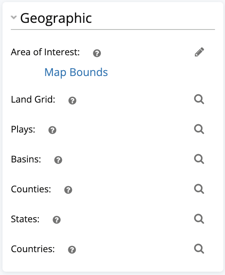
Geographic filters are designed for land-based searches.
- Use the Area of Interest filter to draw an AOI directly on the map.
- Land Grid allows searches by Township/Section/Range or Texas Surveys & Abstracts.
- Play and Basin filters search for wells within the geographic boundaries.
For additional instructions, see: How do I use geographic filters?
Production Filters
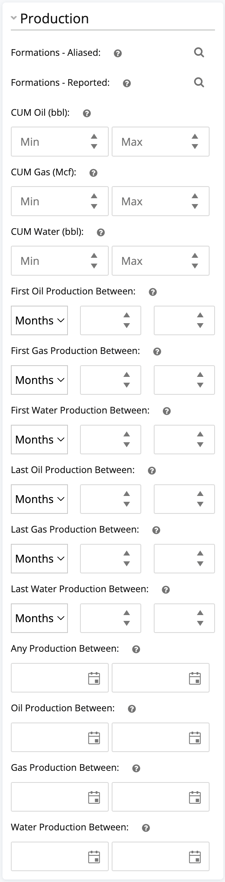
Production filters allow you to search for wells based on production volumes and production timing.
- Oil, gas, and water production can each be filtered independently.
- Cumulative production filters allow searches based on total lifetime production volumes.
- First 3, 6, 12, 24, 36, and 60-month production totals are useful for finding offset wells with similar production profiles.
- Last 1, 6, and 12-month production totals help identify everything from stripper wells to wells not yet on pumps.
- Production between dates filters wells that reported production during a specified date range. This differs from first or last production date filters (covered in the next section).
Event Date Filters
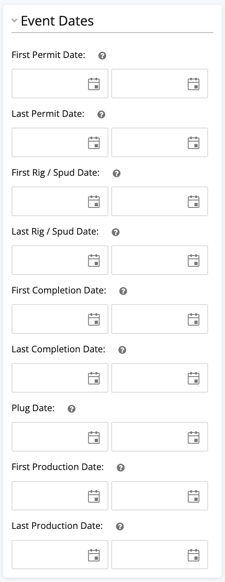
Event date filters allow you to search for wells based on when specific activities occurred.
-
First event date filters return wells where that event occurred for the first time within the selected date range.
-
Last event date filters return wells where the most recent occurrence of that event falls within the selected date range.
Examples include:
- Permit Dates
- Rig / Spud Dates
- Completion Dates
- Production Dates
Example: First vs Last Production Date:
A First Production Date filter of 1/1/2025 – 12/31/2025 only returns wells that first began producing during 2025.
A Last Production Date filter using the same date range returns wells that reported production during 2025, including wells that may have originally started producing years earlier.
Frac Data Filters
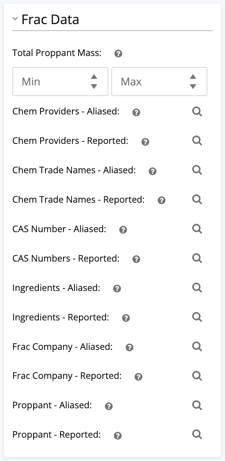
Frac data primarily comes from Frac Focus, though additional sources may supplement the dataset.
- Service companies are identified based on the providers of the primary proppant and chemicals, then cross-referenced with the WellDatabase service company database.
- Proppant, crosslink, and fluid systems are determined by analyzing the chemicals reported for the frac job.
Available Data Filters
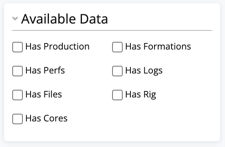
Available data filters allow you to quickly find wells that contain specific types of data. Examples include wells with production, logs, files, formations, cores, or rig data.
Custom Filters
Custom filters are created from user-added data and are only visible to the user who created them.
User data added to WellDatabase automatically becomes available as a filter within the filter pane.
Additional Filter Tips
-
Many filters automatically refresh results when values are changed.
-
You can manually trigger a search using the Search button at the bottom of the Filters pane.
-
Use the Reset button to clear all filters and start over.
- To view only the filters currently applied to your search, click Applied at the top of the Filters pane. Click All to return to the full filter list.
Frequently Asked Questions
Q: Can I save or share filter sets?
A: Yes. Filter sets can be saved, recalled, and shared with other users.
Q: How do I clear all filters and start over?
A: Use the Reset button at the bottom of the Filters pane to clear all filters.
Q: Can I combine multiple filters in the same search?
A: Yes. Multiple filters can be combined to create more targeted search results.
Q: What is the difference between reported and aliased values?
A: Reported values reflect the data exactly as provided by the regulatory agency. Aliased values are cleaned and normalized versions of reported values.
Q: What is the difference between First and Last event date filters?
A: First event date filters return wells where the event occurred for the first time during the selected date range. Last event date filters return wells where the most recent occurrence of the event falls within the selected date range.
Q: What is the difference between Production Between Dates and First Production Date?
A: Production Between Dates searches for wells that reported production during a selected timeframe. First Production Date searches for wells that first began producing during the selected timeframe.
Q: Can I view only the filters currently applied to my search?
A: Yes. Click Applied at the top of the Filters pane to view only filters currently being used in the search.
Q: Can I paste multiple API numbers into the API filter?
A: Yes. Multiple API numbers can be copied and pasted directly into the API text box.
Q: What does the magnifying glass icon mean next to a filter?
A: Filters with a magnifying glass icon include a search helper to assist with selecting values.
Q: Why did my search results automatically refresh?
A: The Auto Update option controls whether search results refresh automatically when filters are changed. You can enable or disable this option using the menu next to the Search button at the bottom of the Filters pane.
Q: How do I narrow down wells in WellDatabase?
A: Use filters within the Filters pane to narrow wells by geography, production, event dates, operators, formations, frac data, and additional criteria.
Explore additional articles by searching the topics on the left. If you have any questions, feel free to email support@welldatabase.com