![WellDatabase-Rect-1000x159-1.png]](https://support.welldatabase.com/hs-fs/hubfs/WellDatabase-Rect-1000x159-1.png?height=40&name=WellDatabase-Rect-1000x159-1.png)
How to Export Data into Whitson+
-
From the top of your results list, click Export All or Export Selected. This opens the Data Export Wizard.
- In Step 2 of the wizard, Settings, use the File Settings dropdown and scroll through the list to select Whitson+. Click Next to continue.
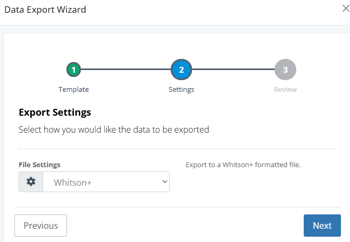
- In Step 3, enter a file name and click Finish to complete the export process.
Video Walkthrough
For more information on the Whitson+ export, watch the following video:
Frequently Asked Questions
Q: Do I need to create or save a Whitson+ template?
A: No. Whitson+ is not a separate export template. It is a predefined export format already included in the Data Export Wizard.
Q: Where do I select the Whitson+ export format?
A: In Step 2 of the Data Export Wizard, Settings, use the File Settings dropdown to select Whitson+.
Q: Can I export only selected wells into Whitson+?
A: Yes. Use Export Selected from the top of your results list to export only the wells you choose.
Explore additional articles by searching the topics on the left. If you have any questions, feel free to email support@welldatabase.com