![WellDatabase-Rect-1000x159-1.png]](https://support.welldatabase.com/hs-fs/hubfs/WellDatabase-Rect-1000x159-1.png?height=40&name=WellDatabase-Rect-1000x159-1.png)
Choose the Right API Search Method
| Filter | Best For | API Limit | Notes |
|---|---|---|---|
| API/UWI | Quick copy/paste searches | Up to 1,000 APIs | Fastest option for smaller lists |
| Well Finder | Large or validated searches | Up to 4,000 APIs | Interactive search that shows matched and unmatched values before applying results |
API/UWI Filter
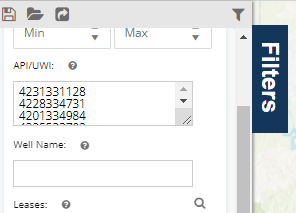
The API/UWI filter allows you to quickly search and map up to 1,000 API or UWI values at one time.
Simply copy and paste API or UWI values from another list (Excel, CSV, etc.) into the API/UWI field within the Filters pane, with each API or UWI value on a separate line.
Note: When copying API numbers directly from Excel, each API is automatically placed on a separate line in the API/UWI field.
Well Finder
The Well Finder tool allows you to search for up to 4,000 API or UWI values in a single search while reviewing matched and unmatched values before applying results.
1. Select Your Search Type
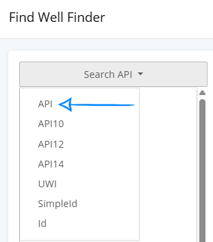
In the first column of the Well Finder, select the value type you want to search by.
Available search types include: API, API10, API12, API14, UWI, SimpleId, and ID
In this example, the search is being performed using API values.
2. Paste API or UWI Values
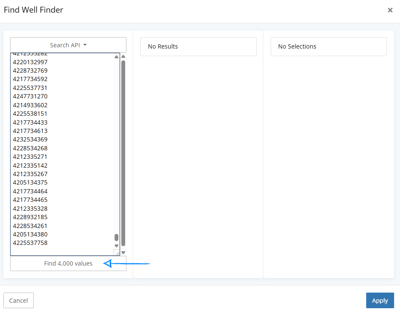
Copy up to 4,000 API numbers from an Excel or CSV file and paste them into the first column. After pasting the values, click Find ## Values at the bottom of the column.
3. Review Matched Results
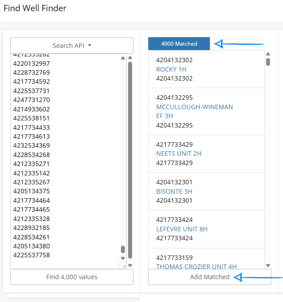
The second column displays all matched wells based on the values provided.
In this example, all 4,000 wells were successfully matched. To continue, click Add Matched to move the wells into the selected results column.
3A. Review Unmatched Values
After adding the matched values, if any API or UWI values are not found, they will appear under the Not Found tab.
Common causes include:
• Typing mistakes or transposed numbers
• Missing digits
• Mixed API formats (API10, API12, API14, etc.)
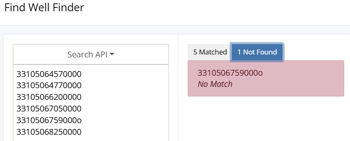
In this example, one API value contains a letter “O” instead of the number “0”, causing the value to return as No Match.
If your list contains multiple API formats, click Search Missing and change the search type to another format such as:
• API10
• API12
• API14
• UWI

Once the values are corrected or searched again using another format, the matched wells can be added to the selection column before applying the search.
4. Apply the Search
Once the wells have been moved into the third column, click Apply.
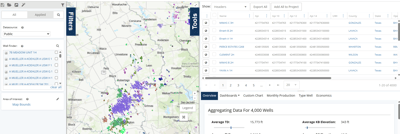
The selected wells will then display on the map, in the well list, and within analytics.
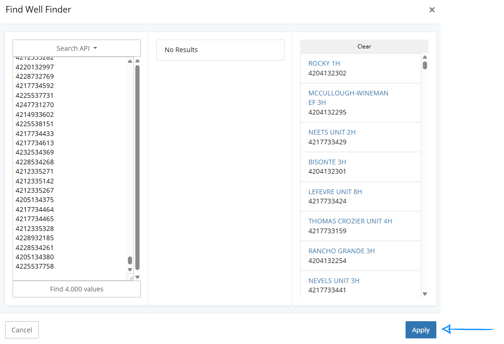
Once you click "Apply" the results will be shown on your map, in your list, and analytics.
Well Finder Limits
The Well Finder supports up to 4,000 values per search. If more than 4,000 values are entered, the search will not process.
If this is a grouping of wells that you work with often, you might consider either saving this search or creating a project.
Subscription Requirements
The Lite (free) plan supports searching for one API/UWI at a time. Searching for multiple API/UWI values at once using either the API/UWI filter or Well Finder requires a paid plan.
Frequently Asked Questions
Q: Can I search for multiple API/UWI numbers with Lite?
A: No. Lite allows you to search for one API/UWI at a time using the API/UWI filter. Searching for multiple API/UWI numbers at once using either the API/UWI filter or Well Finder requires a paid plan.
Q: Why are some wells missing from my API or UWI search results?
A: The most common causes are:
1. Using the API/UWI Filter
The API/UWI Filter unmatched values are simply not returned in the results.
Common causes include:
• Typing mistakes or transposed numbers
• Missing digits
• Mixed API formats (API10, API12, API14, etc.)
2. Using the Well Finder
Using the Well Finder, unmatched values appear under the Not Found tab, allowing you to review values that could not be matched. If your list contains mixed API formats, use the Search Missing option to re-search unmatched values using another format.
3. Wells were not moved into the selected results column
Using the Well Finder, wells must be moved into the selected results column before clicking Apply. Only wells moved into the selected results column will be included when the search is applied.
4. The Area of Interest filter is restricting the results
If the Area of Interest filter is set to Map Bounds, wells without mapped latitude/longitude coordinates will not appear in the search results. If needed, change the Area of Interest filter to No Restrictions (Global) and run the search again.
Q: What is the difference between the API/UWI filter and Well Finder?
A: The API/UWI filter is designed for quick copy/paste searches and supports up to 1,000 values per search. The Well Finder supports up to 4,000 values per search and provides interactive validation before applying the search, including options to view matched results, unmatched values under the Not Found tab, and re-searching unmatched values using different API formats
Q: Can I search mixed API formats in the same list?
A: Yes. If some values are not matched, use the Search Missing option to re-search unmatched values using a different format such as API10, API12, API14, or UWI.
Q: Can I paste values directly from Excel?
A: Yes. When copying directly from Excel, each API value is automatically placed on a separate line in the search field.
Q: What does the “Add Matched” button do?
A: The Add Matched button moves successfully matched wells into the selected results column before applying the search.
Q: What happens if I enter more than 4,000 values into Well Finder?
A: The search will not process if more than 4,000 values are entered into Well Finder.
Q: Can I search by Infinity ID or SimpleId?
A: The Well Finder filter supports searching by API, API10, API12, API14, UWI, SimpleId, and Id (Infinity ID / WellDatabase ID). Select the identifier type from the dropdown before pasting values into the search column.
Explore other articles by searching the topics on the left or if you have any questions feel free to email support@welldatabase.com