![WellDatabase-Rect-1000x159-1.png]](https://support.welldatabase.com/hs-fs/hubfs/WellDatabase-Rect-1000x159-1.png?height=40&name=WellDatabase-Rect-1000x159-1.png)
How to Create a Search Alert
1. Navigate to My → Searches
2. Locate your saved search
3. Click the gear icon next to the search
4. Select Create Alert
This opens the alert settings window where you can configure your notifications.
Alert Settings
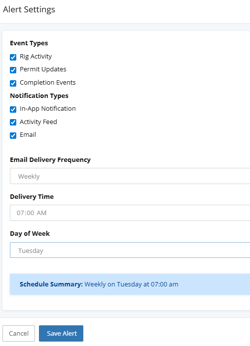
5. Select the Event Types you want to monitor:
• Rig Activity
• Permit Updates
• Completion Events
6. Choose your Notification Types:
• In-App Notification
• Activity Feed
• Email
7. Select your Email Delivery Frequency:
• Daily (select delivery time)
• Weekly (select delivery time and day of the week)
• Monthly (select delivery time and day of the month)
8. Click Save Alert
What Triggers a Search Alert
Search Alerts are triggered when selected activity types occur within your saved search.
This includes:
• Rig Activity
• Permit Updates
• Completion Events
• New wells that match your saved search criteria
Alerts are only sent if new activity has occurred since the last scheduled run.
How Notifications Work
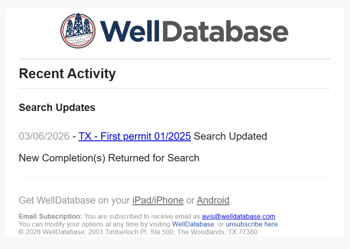
If email notifications are enabled, you will receive a notification when activity is detected.
The email includes:
• A link back to the saved search
• A notification that the search has been updated
Important:
The email does not include well level detailed changes. It serves as a notification that updates are available.
How to View What Changed
To view detailed updates:
1. Navigate to My → Searches
2. Click the gear icon next to the saved search
3. Select Details
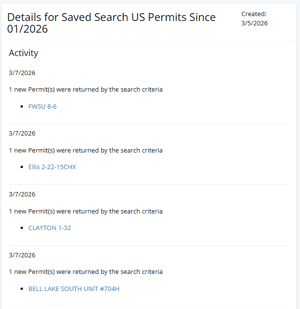
This opens the Activity view for the saved search.
Within this view, you can see:
• A timeline of updates
• The type of activity (e.g., permits, completions)
• A link to the well associated with each update
How to View and Manage Existing Search Alerts
To access or manage an existing Search Alert:
1. Navigate to My → Searches
2. Locate your saved search
3. Click the gear icon next to the search
From here, you can:
• Select Edit Alert to modify settings
• Select Details to view activity and changes
• Remove the alert from the edit screen
Subscription Requirements
Search Alerts are limited based on your subscription:
• Lite: 0 alerts (feature not available)
• Essential: 1 alert
• Plus: 5 alerts
• Pro: 10 alerts
Search Alerts are available on Essential plans and higher.
If you have reached your limit, you must remove an existing alert before creating a new one.
Frequently Asked Questions
Q: What counts as a “change” in a Search Alert?
A: A change includes selected activity types such as rig activity, permit updates, completion events.
Q: I created an alert but did not receive an email. What should I check?
A: Confirm the following:
• The correct Event Types are selected (Rig Activity, Permit Updates, Completion Events)
• Email notifications are enabled
• The alert frequency aligns with when the update occurred
• The update occurred after the alert was created
• New qualifying activity has occurred since the last alert run
Q: My search has results. Why didn’t I receive an alert?
A: Search Alerts do not notify on existing results. Alerts are only triggered by new activity or updates that occur after the alert is created.
Q: Do Search Alerts include details of what changed in the email?
A: No. The email provides a notification and a link back to the platform. Detailed changes can be viewed in the Activity view.
Q: Where can I view what changed in my search?
A: Navigate to: My → Searches → Gear Icon → Details. This opens the Activity view, which displays a timeline of updates and associated wells.
Q: Can I change how often I receive alerts?
A: Yes. Edit the alert to select daily, weekly, or monthly delivery.
Q: Can I edit or delete a Search Alert?
A: Yes. Navigate to: My → Searches → Gear Icon → Edit Alert. From there, you can modify settings or remove the alert.
Q: Can I receive alerts in real time?
A: No. Alerts are delivered based on the selected schedule (daily, weekly, or monthly).
Q: What happens if I delete a saved search?
A: The associated alert is also deleted.
Q: What happens if I reach my alert limit?
A: You must remove an existing alert before creating a new one. Alert limits are based on your subscription level.
Related Articles
Explore additional articles by searching the topics on the left. If you have any questions, feel free to email support@welldatabase.com