![WellDatabase-Rect-1000x159-1.png]](https://support.welldatabase.com/hs-fs/hubfs/WellDatabase-Rect-1000x159-1.png?height=40&name=WellDatabase-Rect-1000x159-1.png)
How to Access Saved Export Templates
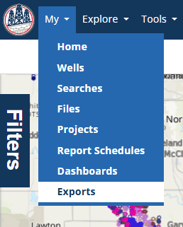
1. Navigate to My → Exports using the navigation menu at the top of WellDatabase.
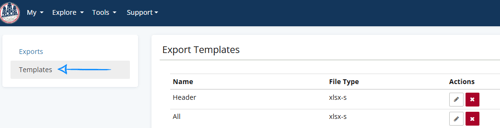
2. Select Templates from the left panel to view your saved export templates.
From this page, you can rename or delete existing templates.
How to Rename an Export Template
-
Locate the template you want to rename and click the pencil icon under Actions.
-
Replace the existing name with your preferred new template name.
-
Click the Save icon to save your changes.

How to Delete an Export Template
-
Locate the template you want to delete and click the red X under Actions.
-
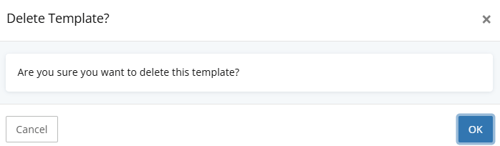
In the Delete Template? confirmation window, click OK to permanently delete the template, or Cancel to keep it.
Note: Deleting an export template is permanent and cannot be reversed.
Related Articles
Frequently Asked Questions
Q: Can I rename an export template without creating a new one?
A: Yes. Navigate to My → Exports → Templates and use the pencil icon to change the name of an existing template. Click the Save icon to save your changes.
Q: Can I recover an export template after deleting it?
A: No. Deleting an export template is permanent and cannot be reversed.
Q: Do I need a paid subscription to manage export templates?
A: Yes. Saving, renaming, and deleting export templates requires a paid WellDatabase subscription. This functionality is available with Essential, Plus, Pro, and Enterprise accounts. It is not available with Lite accounts.
Explore additional articles by searching the topics on the left. If you have any questions, feel free to email support@welldatabase.com