![WellDatabase-Rect-1000x159-1.png]](https://support.welldatabase.com/hs-fs/hubfs/WellDatabase-Rect-1000x159-1.png?height=40&name=WellDatabase-Rect-1000x159-1.png)
Toggle Browser Panels
Use the Map, List, and Analytics buttons in the top-right corner of the Well Browser to show or hide panels.
Blue buttons indicate the panel is visible, while white buttons indicate the panel is hidden.
Layout Options
Map + Analytics: This layout works well for reviewing analytics alongside mapped wells.
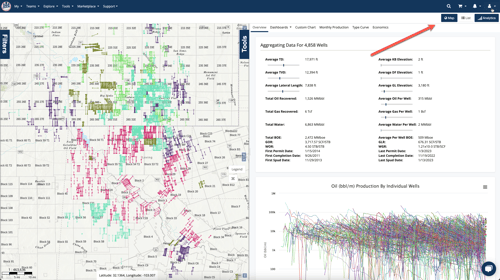
Map + List + Analytics: Enabling the List panel displays well records alongside the map and analytics views. The List view can also be used to export data.
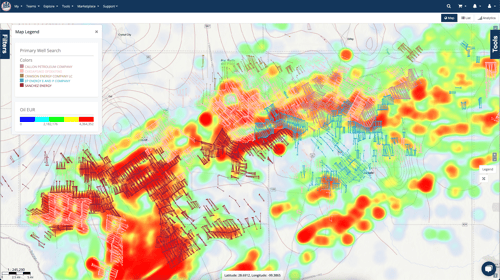
Full-Screen Map: You can hide the List and Analytics panels to maximize map space for GIS workflows and layered map analysis. Full-screen maps allow multiple layers to be viewed together, this example includes county lines, Oil EUR heatmaps, and well spots colored by operator.
Full-Screen Analytics: This can be especially useful when viewing a complex dashboard.
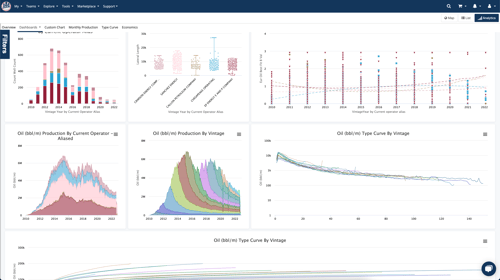
As you can see, the simple toggle for the Map, List, & Analytics gives you a customizable experience without being complicated.
Frequently Asked Questions
Q: What do the blue and white buttons mean?
A: Blue buttons indicate the panel is visible. White buttons indicate the panel is hidden.
Q: Where can I learn more about the List panel?
A: See related article: What can I do with a list?
Explore additional articles by searching the topics on the left. If you have any questions, feel free to email support@welldatabase.com