![WellDatabase-Rect-1000x159-1.png]](https://support.welldatabase.com/hs-fs/hubfs/WellDatabase-Rect-1000x159-1.png?height=40&name=WellDatabase-Rect-1000x159-1.png)
The Print Tool captures the map as it appears in WellDatabase, including the current map extent and visible layers. Before creating the PDF, you can customize the page size, orientation, scale, and other print settings.
Opening the Print Tool
1. Expand the Map Tools Pane at the right of the map and select the Printer icon.
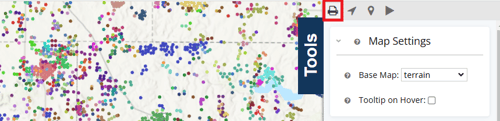
2. The Print Tool along with a blue bounding box will be visible on the map.
You may need to adjust the scale or move the Print Settings dialog to see the blue map preview bounding box.
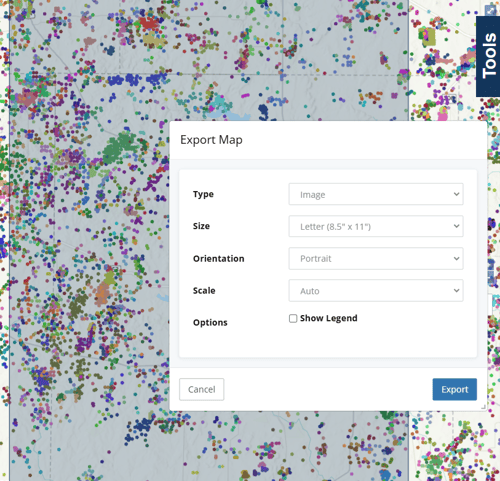
3. At this point you can pan the map and adjust the print settings in the dialog to align the preview box with the area you would like included in the map print.
4. Select Export to generate the map PDF. Once processing is complete, the PDF or image can be downloaded and opened for printing or sharing.
The Print Tool includes several options for configuring your map:
-
Type — Choose whether to export the map as an image or PDF.
-
Page Size — Select the page size.
-
Orientation — Choose Landscape or Portrait orientation.
-
Scale — Select Auto, Current Map Scale, or a specific map scale. Use the preview to confirm the area that will be included.
-
Show Legend — Choose whether the map legend is included on the map.
- Show AOI — Choose whether the Area of Interest (AOI) is included.
Subscription Requirements
The Print Tool is available with Plus and Pro plans. It is not available with Lite or Essential.
If you need to compare available features by plan, see Compare Plans.
Frequently Asked Questions
Q: What file types can the Print Tool create?
A: The Print Tool can export the configured map view as an image or PDF. The selected file type is automatically downloaded to your computer when the export is complete.
Q: Does the Print Tool automatically include everything currently displayed on my map?
A: The PDF is based on the map view and print settings shown in the preview. Review the preview before exporting to confirm the desired area and information are included.
Q: Where is my exported map saved?
A: After the export is complete, the file is automatically downloaded to your computer. It will be saved to the download location configured for your browser, which is typically your Downloads folder.
Q: Can I print a map with an Essential plan?
A: No. The Print Tool is available with Plus and Pro plans. It is not included with Essential.
Q: Is the Print Tool available with Lite?
A: No. The Print Tool is not available with Lite. A Plus or Pro plan is required.
Explore additional articles by searching the topics on the left. If you have any questions, feel free to email support@welldatabase.com