![WellDatabase-Rect-1000x159-1.png]](https://support.welldatabase.com/hs-fs/hubfs/WellDatabase-Rect-1000x159-1.png?height=40&name=WellDatabase-Rect-1000x159-1.png)
If you're experiencing an issue in WellDatabase, our Support team may ask you to provide a HAR file. For the best troubleshooting experience, please also include screenshots of what you are seeing and a detailed description of the issue, including the steps that led up to it.
Why Support May Request a HAR File
A HAR file captures the communication between your web browser and WellDatabase while you reproduce an issue. This information can help identify:
-
Pages that load slowly or fail to load
-
Error messages or unexpected application behavior
-
Features that stop responding
-
Failed or incomplete network requests
How to Create a HAR File
The following steps apply to both Microsoft Edge and Google Chrome. The screenshots in this article were captured in Microsoft Edge, but the process is nearly identical in Google Chrome.
1. Open WellDatabase in your browser.
2. Open the browser's Developer Tools.
-
Press F12 on your keyboard. If your keyboard uses multimedia function keys, you may need to press Fn + F12 instead.
You can also open Developer Tools from the browser menu:
-
Microsoft Edge: Settings and more → More tools → Developer tools
-
Google Chrome: Customize and control Google Chrome → More tools → Developer tools
3. Select the Network tab.
4. Before reproducing the issue, verify the following:
-
Preserve log is checked.
-
Network recording is enabled. If the Record button is gray, click it once to begin recording.
-
Click the Clear (trash can) button to remove any existing network activity.
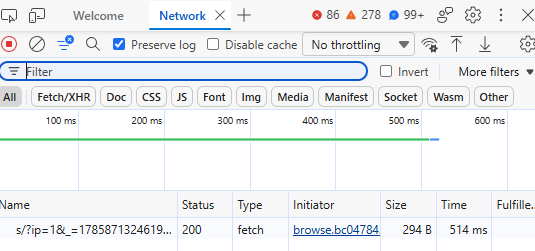
5. With the Network tab still open, reproduce the issue by performing the same steps that caused the problem.
6. After the issue occurs, click the Export HAR (arrow down button) to download and save the file to your computer.
Note: Continue using WellDatabase only until you have reproduced the issue. Once the problem has occurred, export the HAR file before refreshing the page or starting a new session.
Sending the HAR File to Support
To help our Support team investigate the issue as quickly as possible, include the following:
-
The HAR (.har) file
-
One or more screenshots showing the issue
-
A detailed description of what you were trying to accomplish
-
The steps you performed before the issue occurred
-
Any error messages you received
-
Whether the issue happens every time or only occasionally
-
The approximate date and time the issue occurred
Providing all of this information together helps our Support team investigate the issue more efficiently and often reduces the need for additional follow-up questions.
Frequently Asked Questions
Q: What is a HAR file?
A: A HAR (HTTP Archive) file is a diagnostic file that records the network activity between your browser and a website while you use it.
Q: Why does Support request a HAR file?
A: A HAR file helps our Support team identify failed requests, loading errors, and other browser communication issues that may not be visible from screenshots alone. Combined with screenshots and a detailed description of the issue, it provides valuable information that can help us diagnose problems more efficiently.
Q: Can I create a HAR file after the issue has already occurred?
A: For the most useful information, begin recording before reproducing the issue so the network activity leading up to the problem is captured.
Q: Will these instructions work in Mozilla Firefox?
A: Firefox can also create HAR files, but the steps are different from Microsoft Edge and Google Chrome. If you are using Firefox or another browser and need assistance, contact WellDatabase Support and we can provide browser-specific instructions.
Q: Why should I include screenshots and a detailed description with my HAR file?
A: Screenshots and a detailed description help our Support team understand what you were seeing, what you expected to happen, and the steps that led to the issue. Combined with the HAR file, this information often allows us to diagnose problems more quickly.
Explore additional articles by searching the topics on the left. If you have any questions, feel free to email support@welldatabase.com.