![WellDatabase-Rect-1000x159-1.png]](https://support.welldatabase.com/hs-fs/hubfs/WellDatabase-Rect-1000x159-1.png?height=40&name=WellDatabase-Rect-1000x159-1.png)
Grid Map Options
Grid Maps can be displayed in two ways depending on whether you want to replace well spots or display the grid behind them:
- Grid Map Only (Primary Well Layer) – Replaces well spots with a grid visualization.
- Grid Map Behind Well Spots (Data Layer) – Displays the grid behind well locations while keeping well spots visible.
Replace Well Spots with a Grid Map
Before creating a Grid Map, apply any filters needed for the wells you want to analyze. In this example, the map has been filtered to Eagle Ford wells.
1. Open the Tools panel on the right side of the map.
2. In the Well Layer section, locate Visualization Type.
3. Select Grid Mapfrom the dropdown menu.
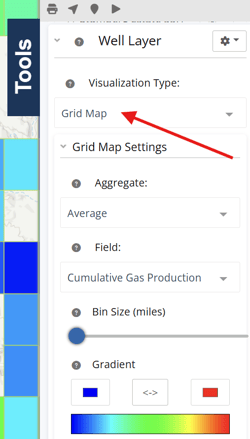
After selecting Grid Map, several configuration options become available:
- Aggregate – Determines how values are summarized within each grid cell. Available options include Sum, Average, P10, P50, and P90.
- Field – Select the property to display within the grid. Hundreds of well and production properties are available.
- Bin Size (miles) – Controls the size of each grid cell. Larger bin sizes create broader trends, while smaller bin sizes provide more localized detail.
- Gradient – Controls the color scale used to display values across the grid. You can optionally define minimum and maximum values to emphasize specific value ranges.
4. Select the property you want to visualize.
5. Choose the desired aggregation method.
6. Adjust the Bin Size and Gradient settings as needed.
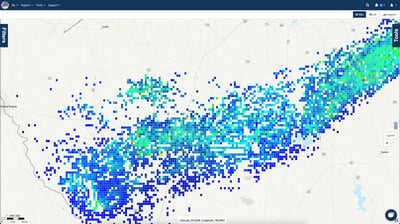
The example below shows a Grid Map displayed without well spots.
Display a Grid Map Behind Well Spots
One of the most common uses of a Grid Map is displaying it behind well spots to visualize trends while keeping individual wells visible. The steps below show how to create a Grid Map as a Data Layer.
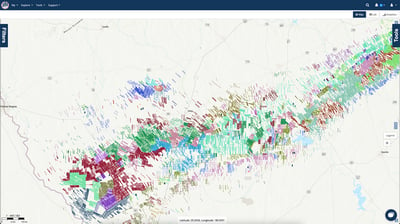
For this example, we'll return to the original Eagle Ford well map created at the beginning of this article. The example below shows the original Eagle Ford well map before adding the Grid Map as a Data Layer.
1. Open the Tools tab.
2. In the Layers section, click the + button to add a new layer.

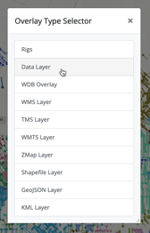
3. In the Overlay Type Selector, select Data Layer.
4. Enter a name for the layer.
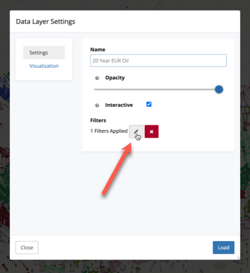
5. Apply any filters needed for the data layer. Click the pencil icon in the Filters section to configure your filters.
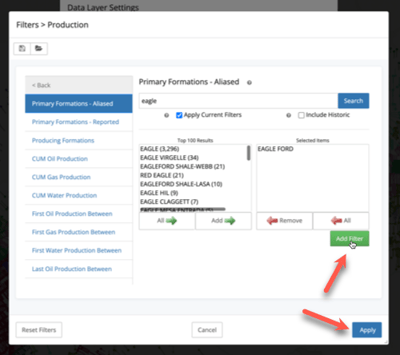
For this example, we'll filter the layer to Primary Formations - Aliased = Eagle Ford. After selecting the desired value, click Add Filter. Once all filters have been added, click Apply.
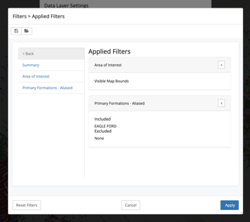
After applying the filter, you can review the Applied Filters summary to verify your selections. Click Apply again to return to the Data Layer Settings window.
6. Select the Visualization tab to choose how the layer will be displayed.
7. Choose Grid Map from the Visualization dropdown.
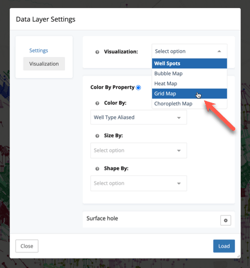
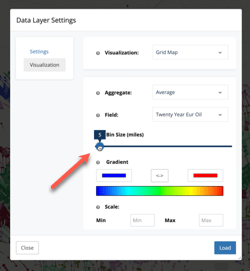
9. Click Load to create the Grid Map.
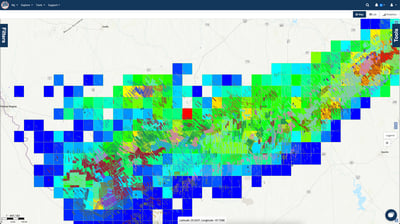
The Grid Map is now displayed behind the well spots, allowing you to visualize broader trends while keeping individual wells visible.
Data Layers can be combined to create multi-layered map visualizations. You can also use layer opacity settings to compare multiple datasets and highlight trends across an area.
Related Articles
Frequently Asked Questions
Q: What is the difference between Grid Map Only and Grid Map Behind Well Spots?
A: Grid Map Only replaces well spots with a grid visualization. Grid Map Behind Well Spots displays the grid as a Data Layer while keeping individual well locations visible.
Q: Can I apply filters to a Grid Map?
A: Yes. Grid Maps can use filters to limit the wells included in the analysis. Filters can be applied when creating the Grid Map or Data Layer.
Q: Can I create multiple Grid Maps on the same map?
A: Yes. Multiple Data Layers can be added to a map, allowing you to compare different datasets and visualize multiple trends simultaneously.
Q: What does Bin Size control?
A: Bin Size determines the size of each grid cell, in one mile sections. Larger bin sizes create broader trends, while smaller bin sizes provide more localized detail.
Q: What is the difference between a Grid Map and a Land Grid?
A: A Grid Map creates analysis cells based on well and production data, allowing you to visualize trends such as production, EUR, well counts, or other properties across an area. A Land Grid displays land survey boundaries, such as sections, townships, ranges, abstracts, and other land-based data. For more information about Land Grids, see How do I search by legal description (Section, Township, Range or Survey, Block and Abstract)?
Explore additional articles by searching the topics on the left. If you have any questions, feel free to email support@welldatabase.com