![WellDatabase-Rect-1000x159-1.png]](https://support.welldatabase.com/hs-fs/hubfs/WellDatabase-Rect-1000x159-1.png?height=40&name=WellDatabase-Rect-1000x159-1.png)
GeoGraphix exports include accompanying .wb4 files that can be imported into GeoGraphix after extracting the export ZIP package.
Exporting GeoGraphix Files from WellDatabase
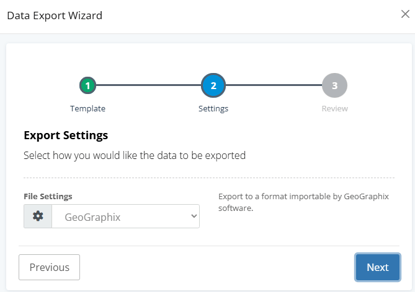
1. Open the Data Export Wizard in WellDatabase
2. Select GeoGraphix from the export format dropdown
3. Complete the export and download the ZIP package
4. Extract the ZIP package to access the included .wb4 files
Importing the .wb4 Files into GeoGraphix
Within GeoGraphix:
1. Open the Imports menu
2. Navigate to: Imports → Well → GeoGraphix ASCII4 Import
3. Select the extracted .wb4 file to begin the import process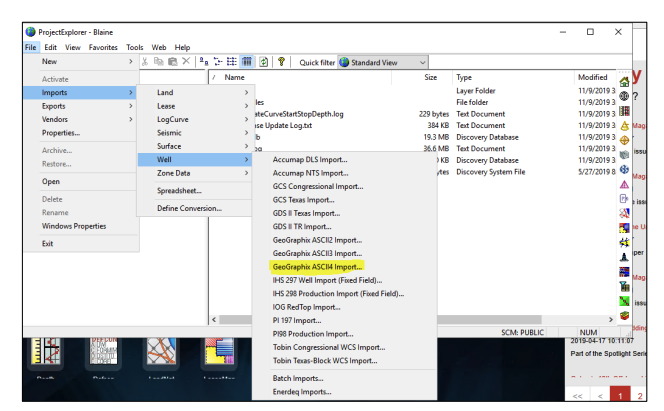
Frequently Asked Questions
Q: What file type is used for GeoGraphix imports?
A: GeoGraphix exports include a .wb4 file used during the import process.
Q: Do I need to extract the ZIP package before importing?
A: Yes. The .wb4 files must be extracted from the export ZIP package before they can be selected in GeoGraphix.
Q: Where do I select the GeoGraphix export option?
A: Select GeoGraphix from the export format dropdown within the WellDatabase Data Export Wizard.
Q: Where is the GeoGraphix import option located?
A: In GeoGraphix, navigate to: Imports → Well → GeoGraphix ASCII4 Import.
Q: Does the GeoGraphix export include production data?
A: No. The GeoGraphix export format available in WellDatabase is designed for loading test data into GeoGraphix. For production data workflows, use the 298/98c export formats.
Explore additional articles by searching the topics on the left. If you have any questions, feel free to email support@welldatabase.com