![WellDatabase-Rect-1000x159-1.png]](https://support.welldatabase.com/hs-fs/hubfs/WellDatabase-Rect-1000x159-1.png?height=40&name=WellDatabase-Rect-1000x159-1.png)
If you’d like to learn more about what an interactive layer is and how it works with your map, click here to learn more.
When an interactive layer is not needed, the Feature Info pop-up can become distracting. Follow the steps below to turn off the pop-up when clicking on the map.
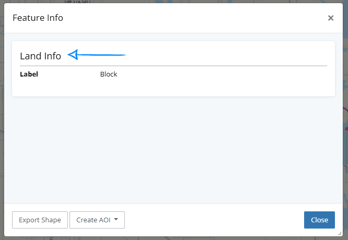
In the pop-up labeled Feature Info, the name of the layer being used is shown. In this example, the Land Info layer is being clicked.
Step 1:
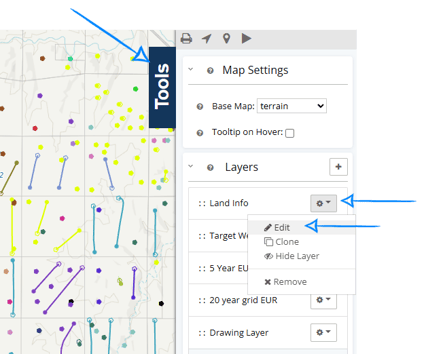
Open the Tools panel on the right side of the map.
In the Layers section, locate the layer shown in the Feature Info pop-up and click Edit.
Step 2:
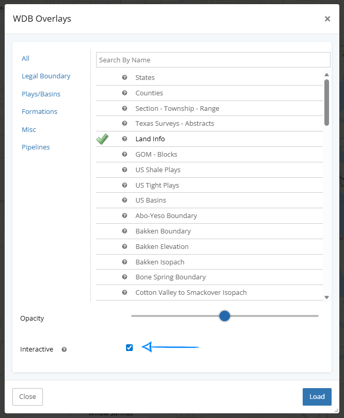
If the Interactive checkbox is selected (as shown below), deselect it.
Then click Load.
Frequently Asked Questions
Q: What does it mean if the Interactive box is unchecked?
A: This typically indicates that more than one layer with the same name exists in the Layers list.
To resolve this:
1. In the Layers list, locate duplicate layers with the same name.
2. Click the gear icon next to the duplicate layer.
3. Select Remove.
Q: What does it mean if the Feature Info pop-up continues to show the same layer name?
A: If the same layer name continues to appear after disabling interactivity, duplicate layers are still present. Remove the duplicate layer(s) using the steps above.
Q: What does it mean if the Feature Info pop-up shows a different layer name?
A: Another duplicate interactive layer may still be present. Repeat the duplicate layer review process for the newly identified layer.
Explore additional articles by searching the topics on the left. If you have any questions, feel free to email support@welldatabase.com.