![WellDatabase-Rect-1000x159-1.png]](https://support.welldatabase.com/hs-fs/hubfs/WellDatabase-Rect-1000x159-1.png?height=40&name=WellDatabase-Rect-1000x159-1.png)
The Data Export Wizard allows you to customize the information included in an export and select the file format that best fits your workflow. Follow the steps below to create and access a completed export.
How to Export Data
After applying filters and generating a list of wells, click Export All to export every well in the list, or Export Selected to export only the wells selected using the checkboxes.
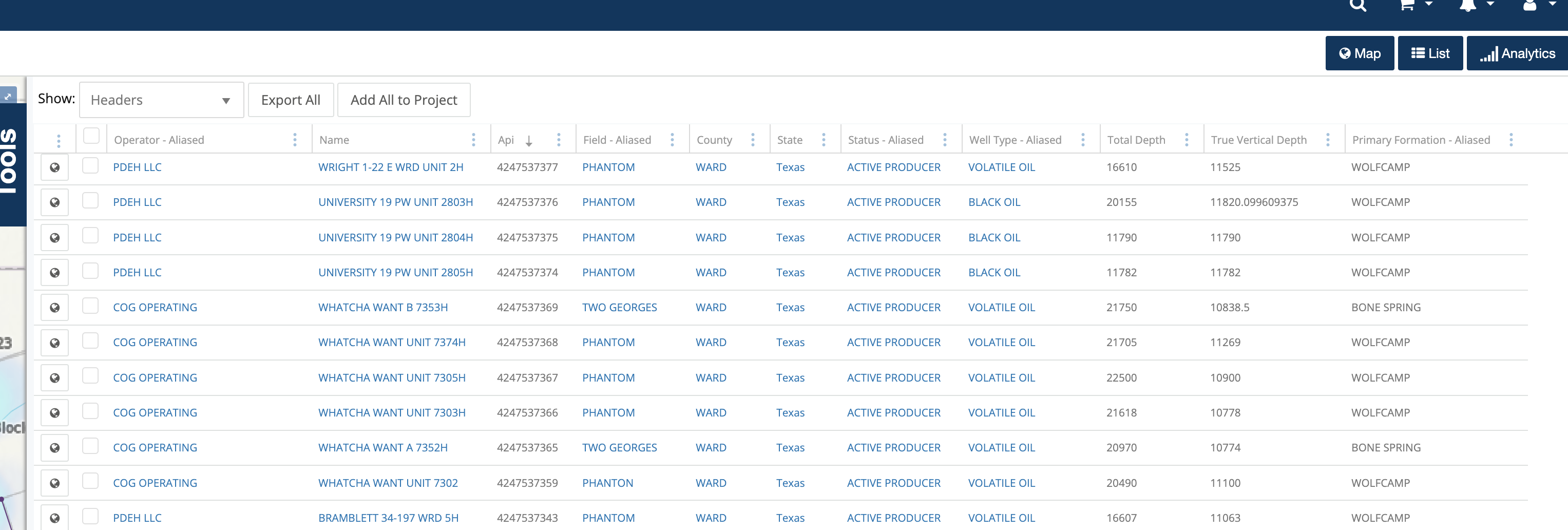
Note: If you do not see the well list shown above, your List panel may be hidden. See How do I toggle my Map, List, and Analytics panels? for instructions on restoring the List panel.
Data Export Wizard
The Data Export Wizard will open and guide you through the export process.
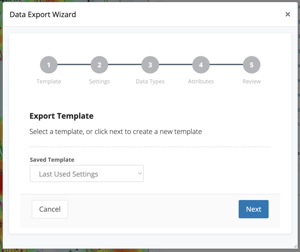
Step 1: Template
If this is your first export, select New. If you have previously created export templates, you can select a saved template or choose Last Used Settings to reuse your most recent export configuration.

Step 2: Settings
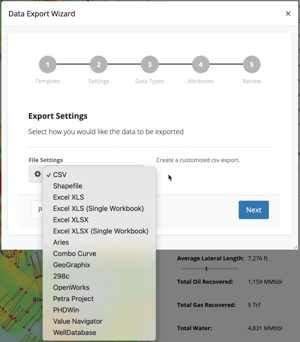
The Settings step is used to select the export format.
For this example, we will create a CSV export using the Well Headers and Production record types. Because CSV exports create one file for each selected record type, this export will generate two output files.
The same workflow can also be used for Excel exports. In most cases, WellDatabase recommends Excel XLSX rather than Excel XLS, as the newer XLSX format supports larger datasets and more rows.
For a complete list of supported export formats, see Which 3rd party software does WellDatabase export to?
Select the desired export format and click Next.
Step 3: Data Types
The options shown in Step 3 depend on the export format selected in Step 2: Settings.
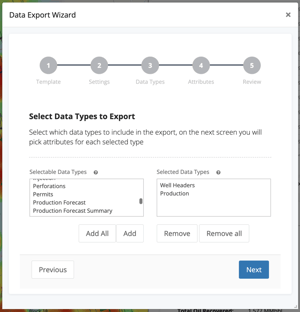
For customizable formats such as CSV and Excel, Step 3 allows you to select the data types (record types) to include in the export.
In this example, we are selecting Well Headers and Production. Well Headers contains general well information that is commonly included in exports, while Production contains monthly production history and production-related data. Because this example includes both Well Headers and Production, the completed CSV export will generate two separate output files—one for each selected data type.
To include a data type in the export, move it from the Selectable Data Types column to the Selected Data Types column.
After adding the desired data types to the Selected Data Types column, click Next.
Note: For export formats other than CSV or Excel, Step 3 may display different export settings instead of the data type selection shown below.
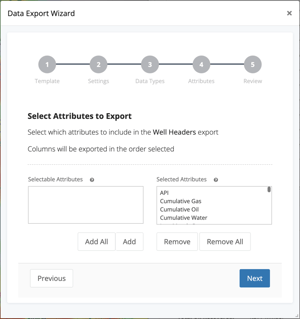
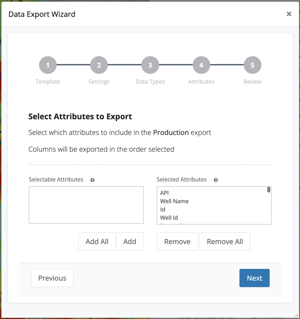
Step 4: Attributes
The Attributes step is used to choose the specific fields included in the export.
The attributes selected in this step determine which columns will appear in the exported file. For example, if you select Well Headers, the attributes you choose determine which well header columns are included in the export.
This step must be completed for each data type selected in Step 3: Data Types. In this example, we selected Well Headers and Production, so the Attributes step will appear once for Well Headers and once for Production.
To include all available attributes for a data type, click Add All, then click Next.
Step 5: Review
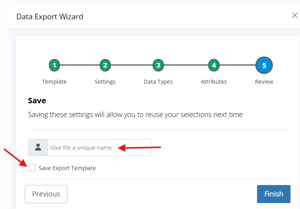
The final step is used to name the export and optionally save the export settings for future use.
Enter a name for the export in the export name field.
If you expect to run a similar export again in the future, select Save Export Template. Saving export settings creates a template that can be selected during Step 1: Template the next time you create an export.
After reviewing the settings, click Finish to submit the export for processing.
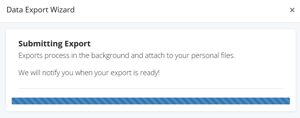
After clicking Finish, a confirmation window will appear indicating that the export has been submitted and is being processed in the background.
Accessing Your Export
Once an export has completed processing, it can be downloaded using any of the methods below.
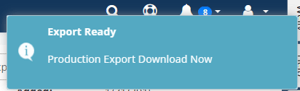
1. Export Ready Notification
When processing is complete, WellDatabase will display an Export Ready notification. Click Download Now to immediately download the completed export.
2. Notification Center
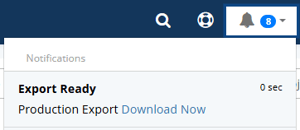
You can also access completed exports through the notification center by clicking the bell icon in the upper-right corner of the application. Recent exports will appear in the notification list and can be downloaded directly.
3. My → Exports
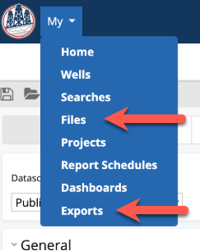
Navigate to My → Exports to view export history, download completed exports or reprocess previous exports using the original export settings.
4. My → Files
Completed exports are also available from My → Files. Use the gear icon next to the export name and select Download File.
Related Articles
- How do I access my exports?
- Why did my export fail?
- What are advanced exports?
- How do I export lease level production?
- How can I find the first 90 day production for an area?
- Can I download documents?
Frequently Asked Questions
Q: Why did my export create multiple files?
A: CSV, Excel XLSX, and other export formats may create multiple files when multiple data types are selected. In this example, selecting both Well Headers and Production creates separate output files for each data type.
Q: What is the difference between Excel XLSX and Excel XLSX (Single Workbook)?
A: Excel XLSX creates a separate file for each selected data type. Excel XLSX (Single Workbook) combines all selected data types into a single workbook and places each data type on its own worksheet tab.
Q: Why am I seeing the Attributes step more than once?
A: Yes. The Attributes step is completed separately for each selected data type. This allows you to choose different fields for each data type included in the export.
Q: Why do I need to select API Number for each data type?
A: Attributes are selected independently for each data type. Selecting API Number for Well Headers does not automatically include API Number in Production, Completions, or other selected data types. If you want a field such as API Number to appear in multiple data types, it must be selected during the Attributes step for each applicable data type.
Q: Why am I stuck on Step 4: Attributes?
A: The Attributes step is completed separately for each data type selected in Step 3: Data Types. For example, if you select Well Headers and Production, you will configure attributes for Well Headers first, then configure attributes for Production before advancing to the final Review step. Example: If 15 data types are selected, you will complete the Attributes step 15 times—once for each selected data type. This allows you to choose different fields for each data type included in the export. If this is a recurring export, consider selecting Save Export Template during Step 5: Review. Saved templates allow you to reuse the same export settings, data types, and attributes without repeating the setup process each time.
Q: Can I save my export settings for future use?
A: Yes. During the Review step, select Save Export Settings for Reuse to create a template that can be selected during future exports. When a saved template is selected, the export settings, data types, and attributes are automatically populated using the saved configuration. If no changes are needed, you can navigate directly to the final Review step and submit the export without repeating each step of the wizard. This can significantly reduce the time required for exports that are run on a regular basis.
Q: Can I export data with a Lite subscription?
A: No. Data exports are not available with Lite subscriptions.
Q: How many exports are included with my subscription?
A: Export allowances vary by subscription level. Refer to the Compare Plans page for current export limits and feature availability.
Explore additional articles by searching the topics on the left. If you have any questions, feel free to email support@welldatabase.com