![WellDatabase-Rect-1000x159-1.png]](https://support.welldatabase.com/hs-fs/hubfs/WellDatabase-Rect-1000x159-1.png?height=40&name=WellDatabase-Rect-1000x159-1.png)
A custom AOI allows you to draw your own search boundary directly on the map using one of several drawing tools. Depending on your workflow, you can create circular, rectangular, polygon, line, or freehand (lasso) boundaries.
How to Create a Custom AOI
-
Open the Filters panel and expand the Geographic section.
-
Click the pencil icon next to Area of Interest or click Map Bounds
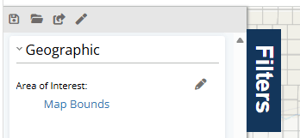
- In the Create AOI window, select Custom Shape. By default, Draw on Map is selected.
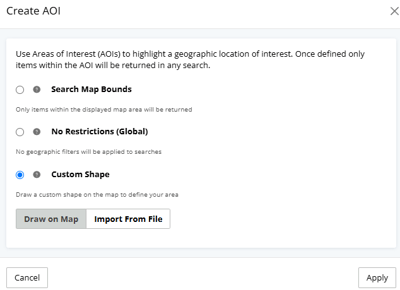
- Click Apply.
- The drawing toolbar will appear at the top of the map.

- Select the drawing tool you want to use.
- Draw the AOI on the map.
- When you're finished, click Finish to apply the Area of Interest.
Using the AOI Drawing Tools
Choose the drawing tool that best fits your search area.
-
Circle – Click once to set the center point, then move your cursor and click again to define the radius.
-
Polygon – Click to place each corner of the boundary. Continue adding points until the shape is complete, then close the polygon.
-
Rectangle – Click once to set the starting corner, then click again to create the opposite corner.
-
Line – Click to place each point along a linear path. Continue adding points until the line is complete.
-
Lasso – Click and hold the left mouse button while freely drawing the desired boundary. Release the mouse button to finish.
Tips
-
Your custom AOI remains active until it is changed or removed.
-
Additional filters can be combined with a custom AOI to further refine search results.
-
Polygon and Lasso tools work well for irregular lease boundaries or prospect areas.
-
Circle and Rectangle are ideal for quickly defining a search area.
Subscription Requirements
Custom AOI map searches are available with the following paid subscriptions: Essential, Plus, Pro, and Enterprise.
This feature is not available on the Lite (free) plan.
Related Articles
- How do I remove the shading from a custom AOI?
- How do I use a shapefile as a search area?
- How do I export a shape drawn on the map?
- How do I save a search?
- What is Map Bounds?
Frequently Asked Questions
Q: Which subscription plans include Custom AOIs?
A: Custom AOI map searches are available with Essential, Plus, Pro, and Enterprise subscriptions. This feature is not available on the Lite (free) plan.
Q: Can I import an AOI instead of drawing one?
A: Yes. Select Custom Shape and choose Import From File instead of Draw on Map.
Q: Which drawing tool should I use?
A: Rectangle and Circle are best for quickly defining an area. Polygon and Lasso provide more flexibility for irregular boundaries.
Q: Can I combine a custom AOI with other filters?
A: Yes. After defining your Area of Interest, you can apply additional filters to further narrow your search results.
Explore additional articles by searching the topics on the left. If you have any questions, feel free to email support@welldatabase.com